Hass Plugin/API
About
Hass Plugin
The Hass plugin connects to Home Assistant using the websocket API and maintains this connection while AppDaemon is running. In addition, it maintains an HTTP session because some functionality is only available via the REST API. If the connection is lost, the plugin will gracefully attempt to reconnect every 5s until it succeeds, any apps that are using the Hass API will be stopped and restarted when the connection is re-established.
Hass API
The Hass API is an interface layer that makes it easy for users to
interact with the Hass plugin. In addition to all the methods of the ADAPI, it provides many methods that are
specific to Home Assistant. Most of these methods simply wrap calling services with some logic that make them more
convenient to use.
Plugin Configuration
The Hass plugin must be configured in the appdaemon.yaml file under the plugins section in order for it to
connect to Home Assistant. This example shows where it fits into the overall configuration file.
# conf/appdaemon.yaml
appdaemon:
  ... # other AppDaemon config here
  plugins:
    HASS:         # This is the name of the plugin, it can be anything
      type: hass  # required
      ha_url: ... # required
      token: ...  # required
      ... # other Hass plugin config options here
Configuration Options
This is the full list of configuration options available for the Hass plugin.
Key |
Note |
Description |
|---|---|---|
|
required |
This must be declared and it must be the exact value |
|
required |
URL to a Home Assistant instance, must include correct port and scheme ( |
|
required |
Long-lived token for for authentication with Home Assistant. See the section on authentication for more information on how to set it up. |
|
deprecated |
Use |
|
optional |
Time to sleep between connection attempts. Defaults to 5 seconds. |
|
optional |
Flag for adding an SSL context around the |
|
optional |
Path to the SSL certificate file. This is only used if |
|
optional |
Port the AppDaemon RESTful API will listen on. If not specified, API is disabled |
|
optional |
Timeout for waiting for Home Assistant response from the websocket API. This is the time between when a websocket
message is first sent and when Home Assistant responds with some kind of acknowledgement/result. Config values
are parsed with |
|
optional |
If |
|
optional |
Delay in seconds before initializing apps and listening for events |
|
optional |
See the startup control section for more information. |
|
optional |
See the startup control section for more information. |
Authentication
The Hass plugin needs a long-lived access token to authenticate with Home Assistant over the websocket. This is
provided to AppDaemon by the token directive in the plugin configuration.
To create a long-lived access token, use the following steps:
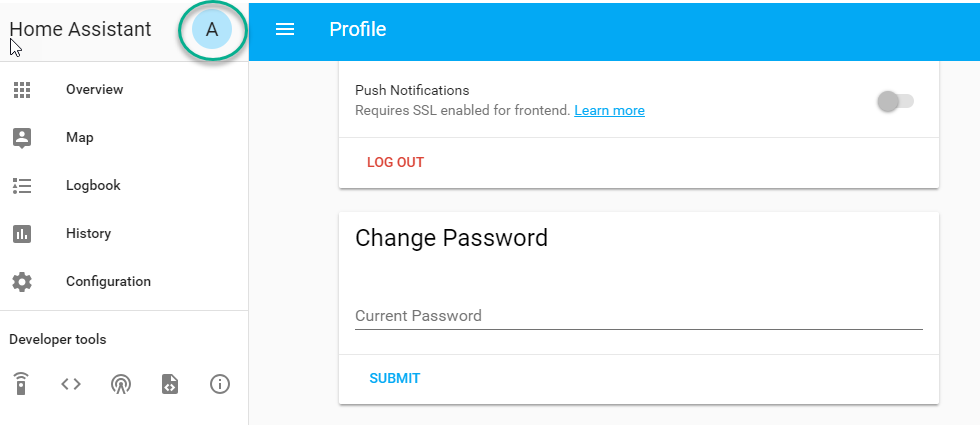
1. Login as the user that you want to create the token for and open the user profile. The profile is found by clicking
the icon next to the Home Assistant label to the left of the web ui when the burger menu is clicked:
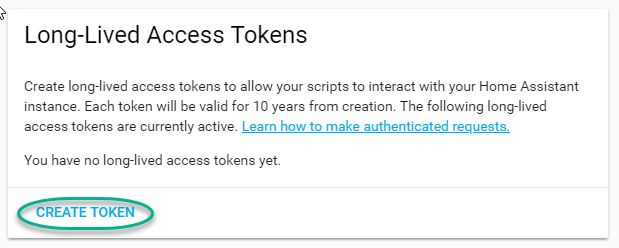
At the bottom of the user profile is the Long-Lived Access Tokens section. Click on “Create Token”
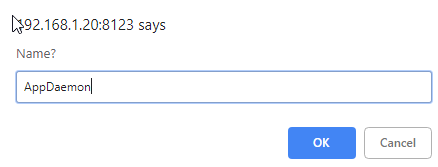
This will pop up a dialog that asks you for the name of the token - this can be anything, it’s just to remind you what
the token was created for - AppDaemon is as good a name as any. When you are done click OK
A new dialog will popup with the token itself showing:
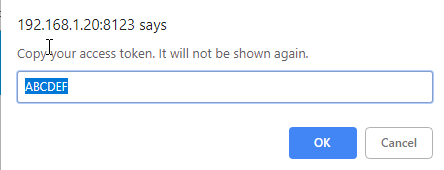
Copy this string and add it as the argument of the token directive in your HASS Plugin section:
token: ABCDEF
A real token will be a lot longer than this and will consist of a string of random letters and numbers. For example:
eyJ0eXAiOiJKV1QiLCJhbGciOiJIUzI1NiJ9.eyJpc3MiOiIwZmRkYmE0YTM0MTY0...
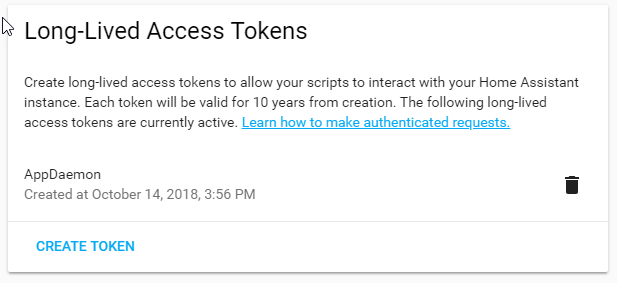
4. A reference to your new token will be shown in the Long-Lived tokens section, and you can revoke access via this token at any time by pressing the delete icon. The token will last for 10 years.
Startup Control
The Hass plugin has the ability to pause startup until various criteria have been met. This can be useful for preventing apps that depend on certain entities or services from starting before they are available. AppDaemon will not mark the plugin as ready until all of these conditions have been met, which prevents any apps that depend on the plugin from being started. Each condition only has to be met once for it to be considered satisfied.
When the plugin first starts with AppDaemon itself, it will check the conditions in the appdaemon_startup_conditions
key before starting any apps. If the connection to Home Assistant is broken and re-established, it will check the
conditions in the plugin_startup_conditions key before starting any apps.
Starting Event
If/when the Hass plugin reconnects to Home Assistant, it will wait for the
homeassistant_startedevent before starting any of the apps that use the Hass API. Home Assistant will accept connections very early as it’s starting, even before some fundamental components have been loaded, which causes most apps to somehow fail without waiting for this event. This is the same event that the Home Assistant web UI waits for to indicate readiness.
# conf/appdaemon.yaml
appdaemon:
  ... # other AppDaemon config here
  plugins:
    HASS:
      type: hass  # required
      ha_url: ... # required
      token: ...  # required
      ... # other Hass plugin config options here
      appdaemon_startup_conditions:
        delay: ...
        state: ...
        event: ...
      plugin_startup_conditions:
        delay: ...
        state: ...
        event: ...
delay
Delay startup for a number of seconds, for example:
delay: 10 # delays for 10s
state
Wait until a specific state exists or has a specific value or set of values. The values can be specified as an inline dictionary as follows:
wait until an entity exists -
state: {entity: <entity id>}wait until an entity exists and has a specific value for its state:
state: {entity: <entity id>, value: {state: "on"}}wait until an entity exists and has a specific value for an attribute:
state: {entity: <entity id>, value: {attributes: {attribute: value}}}
Example to wait for an input boolean:
state:
  entity: input_boolean.appdaemon_enable # example entity name
  value:
    state: "on" # on needs to be in quotes
Example to wait for a light to be on full brightness:
state:
  entity: light.office_1 # example entity
  value:
    state: "on" # on needs to be in quotes
    attributes:
      brightness: 255 # full brightness
event
Wait for an event or an event with specific data
wait for an event of a given type:
{event_type: <event name>}wait for an event with specific data:
{event_type: <event name>, data: {service_data: {entity_id: <some entity>}, service: <some service>}}
Example to wait for ZWave to complete initialization upon a HASS restart:
event:
  event_type: zwave.network_ready
Example to wait for an input button before starting AppDaemon
event:
  event_type: call_service
  data:
    domain: input_button
    service: press
    service_data:
      entity_id: input_button.start_appdaemon # example entity
API Usage
Create apps using the Hass API by inheriting from the Hass class:
from appdaemon.plugins.hass import Hass


class MyApp(Hass):
    def initialize(self):
        ... # Your initialization code here
Read the AppDaemon API Reference to learn other inherited helper functions that can be used by Hass applications.
Services
Services are now called actions in Home Assistant, but are sometimes also referred to as service actions. Any of
them can be called by using the call_service method with
their domain and service name.
The specific services available will vary depending on which integrations are installed in Home Assistant, but some
common ones would be light/toggle, switch/turn_off, etc. These services would control physical devices, but
services can do many other things as well.
Service Name Delimiter
AppDaemon uses the
/delimter to separate the domain and service name, instead of the.used by Home Assistant, solight.turn_onin Home Assistant becomeslight/turn_onin AppDaemon.
Returning values
As of AppDaemon v4.5.0, service calls can return values. When services are registered with AppDaemon, Home Assistant
indicates whether they return values and whether doing so is optional. AppDaemon uses that information to automatically
insert "return_response": true into the message it sends to Home Assistant if necessary.
Home Assistant Responses
Home Assistant always responds with some kind of acknowledgement, even for services that don’t otherwise return a value. AppDaemon includes whatever it gets from Home Assistant in the result dict.
Key |
Value |
|---|---|
|
Sequential ID of the websocket request. This matches the one that AppDaemon used with the initial request. |
|
This will always be |
|
Boolean representing whether the service call was successful or not. |
|
Dict with the result of the service call if it was successful. |
|
Dict with error information if the service call was not successful. |
|
Status from AppDaemon for the request. |
|
Floating point number representing the round trip time of the request in seconds. |
Status |
Value |
|---|---|
|
Inidcates that the process of calling the service didn’t fail on the AppDaemon side. It could still have failed on the Home Assistant side. |
|
The service call timed out while waiting for a response from Home Assistant. This can happen if the
|
|
Indicates that the task for the service call was cancelled while it was waiting for a response from Home Assistant. |
Revealed Errors
With service calls now returning values, it’s possible for operations that were silently failing before to now produce warnings or errors. In most cases, this is beneficial/desired, but these can also be suppressed. For example, Z-Wave devices are known to take a long time to respond, which can cause timeouts. However, most services return nearly instantly.
Timeouts
These timeouts determine how long AppDaemon will wait for a response from Home Assistant before giving up and returning
with a TIMEOUT for ad_status in the result dict.
Timeout |
Explanation |
|---|---|
|
Provided with the service call and only affects that specific call. |
|
Provided in |
|
Provided in |
Services and states
Setting the state of an entity only changes how it appears in Home Assistant, which is perfect for sensors, but not
devices like lights. To physically turn on a light, you should call the light/turn_on service. Merely setting the
state will not do that.
Service Registration
The Hass plugin registers the initial set of services immediately after it authenticates with Home Assistant.
Afterwards, AppDaemon will register services whenever Home Assistant emits service_registered events. This makes all
of the services/actions in Home Assistant available to AppDaemon apps. Users can still register their own services from
apps using the register_service method.
Advanced Service Calls
The Hass API ultimately wraps the
calling a service action feature
of the websocket API, so anything that can be done through that API, can be done with AppDaemon. Successfully calling
the service action merely depends on formatting the arguments to
call_service correctly.
Here’s one example
from appdaemon.plugins.hass import Hass


class MyApp(Hass):
    def initialize(self):
        self.call_service(
            "notify/alexa_media",
            service_data={
                "target": "media_player.tom_office",
                "data": {"type": "announce"}
            }
            message="This is a test message"
        )
Debugging
Some services require a complex set of data, which can require some tinkering to format correctly. There are a few techniques that are useful for determining how that data should be formatted, starting with looking at the log text. Unless suppressed, AppDaemon will log warnings for any failed service calls. These warnings will have whatever message Home Assistant returned with the error, which is often helpful.
Beyond that, it’s possible to inspect the services more closely by using the
get_service_info method. This returns a nested dict
of information about the service, which comes from a call to
get_services that AppDaemon does
internally. This contains a little more detail than is visible in the Home Assistant developer tools.
  from appdaemon.plugins.hass import Hass


  class MyApp(Hass):
      def initialize(self):
          service = "climate/set_temperature"
          self.log_service_details(service)

      def log_service_details(self, service: str) -> None:
          if service_info := self.get_service_info(service):
              self.log(f"{service}: {service_info['name']}")
              for field, info in service_info['fields'].items():
                  self.log(f"  {field}: {info['description']}")
                  match info:
                      case {'selector': {'number': {'min': min_value, 'max': max_value}}}:
                          self.log(f"    {min_value} to {max_value}")
                      case {'selector': {'select': {'options': options}}}:
                          self.log(f"    {', '.join(options)}")
                      case _:
                          pass
INFO my_app: climate/set_temperature: Set target temperature
INFO my_app:   temperature: The temperature setpoint.
INFO my_app:     0 to 250
INFO my_app:   target_temp_high: The max temperature setpoint.
INFO my_app:     0 to 250
INFO my_app:   target_temp_low: The min temperature setpoint.
INFO my_app:     0 to 250
INFO my_app:   hvac_mode: HVAC operation mode.
INFO my_app:     off, auto, cool, dry, fan_only, heat_cool, heat
Turning up the logging level to DEBUG to inspect the raw JSON being sent over the websocket.
Error Handling
Python got a match/case structure in v3.10, which has some very convenient patterns for handling the
results returned by service calls. See this tutorial for more information about the different ways
to use it. For example, this service call will fail because it has bogus_arg=42, which isn’t allowed by the
light/turn_on service in Home Assistant.
from appdaemon.plugins.hass import Hass
from appdaemon.utils import format_timedelta


class MyApp(Hass):
    def initialize(self):
        service = "climate/set_temperature"
        res = self.call_service(service, entity_id="climate.living_room", bogus_arg=42)
        match res:
            case {'success': True}:
                self.log("Service call was successful")
            case {'success': False, 'ad_status': 'OK', 'ad_duration': duration}:
                time_str = format_timedelta(duration)
                self.log(f"Service call failed on the Home Assistant side, and took {time_str}")
            case _:
                self.log(f"Unexpected response format from service call: {res}")
WARNING HASS: Error with websocket result: invalid_format: must contain at least one of temperature, target_temp_high, target_temp_low.
INFO my_app: Service call failed on the Home Assistant side, and took 8.583ms
By default, AppDaemon will log warnings for any service call that fails. If you prefer to do error checking yourself on
a per-call basis you can set the suppress_log_messages argument to True when using
call_service, or you can suppress log messages globally by
setting suppress_log_messages to true in the plugin configuration.
  from appdaemon.plugins.hass import Hass


  class MyApp(Hass):
      def initialize(self):
          service = "climate/set_temperature"
          res = self.call_service(
              service,
              entity_id="light.kitchen",
              bogus_arg=42,
              suppress_log_messages=True,
          )
          match res:
              case {'success': True}:
                  self.log("Service call was successful")
              case {'success': False, 'ad_status': 'OK', 'error': error}:
                  self.handle_error(service, **error)
              case _:
                  self.log(f"Unexpected response format from service call: {res}")

      def handle_error(self, service: str, code: str, message: str) -> None:
          self.log(f"Service call failed: {message}", level="ERROR")
          match code:
              case "invalid_format":
                  if service_info := self.get_service_info(service):
                      valid_fields = service_info.get("fields", {})
                      field_names = "\n".join(f"  - {f}" for f in valid_fields)
                      self.log(
                          f"The service call had an invalid format. "
                          f"Valid fields are:\n{field_names}",
                          level="ERROR",
                      )
              case _:
                  self.log(f"Unhandled error: {code}: {message}", level="ERROR")
ERROR my_app: Service call failed: must contain at least one of temperature, target_temp_high, target_temp_low.
ERROR my_app: The service call had an invalid format. Valid fields are:
  - temperature
  - target_temp_high
  - target_temp_low
  - hvac_mode
Rendering Templates
Home Assistant has a powerful templating engine that
can be used to render templates in your apps. The Hass API provides access to this with the
render_template method.
API Reference
- class appdaemon.plugins.hass.hassapi.Hass(ad: AppDaemon, config_model: AppConfig)
HASS API class for the users to inherit from.
This class provides an interface to the HassPlugin object that connects to Home Assistant.
- check_for_entity(entity_id: str, namespace: str | None = None) bool
Uses the REST API to check if an entity exists instead of checking AD’s internal state.
- Parameters:
entity_id (str) – Fully qualified id.
namespace (str, optional) – Namespace to use for the call. See the section on namespaces for a detailed description. In most cases it is safe to ignore this parameter.
- Returns:
Bool of whether the entity exists.
- get_tracker_details(person: bool = True, namespace: str | None = None, copy: bool = True) dict[str, Any]
Returns a list of all device tracker and the associated states.
- Parameters:
person (boolean, optional) – If set to True, use person rather than device_tracker as the device type to query
namespace (str, optional) – Namespace to use for the call. See the section on namespaces for a detailed description. In most cases it is safe to ignore this parameter.
copy (bool, optional) – Whether to return a copy of the state dictionary. This is usually the desired behavior because it prevents accidental modification of the internal AD data structures. Defaults to True.
Examples
>>> trackers = self.get_tracker_details()
>>> for tracker in trackers:
>>>     do something
- get_trackers(person: bool = True, namespace: str | None = None) list[str]
Returns a list of all device tracker names.
- Parameters:
person (boolean, optional) – If set to True, use person rather than device_tracker as the device type to query
namespace (str, optional) – Namespace to use for the call. See the section on namespaces for a detailed description. In most cases it is safe to ignore this parameter.
Examples
>>> trackers = self.get_trackers()
>>> for tracker in trackers:
>>>     do something
>>> people = self.get_trackers(person=True)
>>> for person in people:
>>>     do something
- get_tracker_state(entity_id: str, attribute: str | None = None, default: Any | None = None, namespace: str | None = None, copy: bool = True) str
Gets the state of a tracker.
- Parameters:
entity_id (str) – Fully qualified entity id of the device tracker or person to query, e.g.,
device_tracker.andreworperson.andrew.attribute (str, optional) – Name of the attribute to return
default (Any, optional) – Default value to return when the attribute isn’t found
namespace (str, optional) – Namespace to use for the call. See the section on namespaces for a detailed description. In most cases it is safe to ignore this parameter.
copy (bool, optional) – Whether to return a copy of the state dictionary. This is usually the desired behavior because it prevents accidental modification of the internal AD data structures. Defaults to True.
- Returns:
The values returned depend in part on the configuration and type of device trackers in the system. Simpler tracker types like
LocativeorNMAPwill return one of 2 states:homenot_home
Some types of device tracker are in addition able to supply locations that have been configured as Geofences, in which case the name of that location can be returned.
Examples
>>> state = self.get_tracker_state("device_tracker.andrew")
>>>     self.log(f"state is {state}")
>>> state = self.get_tracker_state("person.andrew")
>>>     self.log(f"state is {state}")
- anyone_home(person: bool = True, namespace: str | None = None) bool
Determines if the house/apartment is occupied.
A convenience function to determine if one or more person is home. Use this in preference to getting the state of
group.all_devices()as it avoids a race condition when using state change callbacks for device trackers.- Parameters:
person (boolean, optional) – If set to True, use person rather than device_tracker as the device type to query
namespace (str, optional) – Namespace to use for the call. See the section on namespaces for a detailed description. In most cases it is safe to ignore this parameter.
- Returns:
Returns
Trueif anyone is at home,Falseotherwise.
Examples
>>> if self.anyone_home():
>>>     do something
>>> if self.anyone_home(person=True):
>>>     do something
- everyone_home(person: bool = True, namespace: str | None = None) bool
Determine if all family’s members at home.
A convenience function to determine if everyone is home. Use this in preference to getting the state of
group.all_devices()as it avoids a race condition when using state change callbacks for device trackers.- Parameters:
person (boolean, optional) – If set to True, use person rather than device_tracker as the device type to query
namespace (str, optional) – Namespace to use for the call. See the section on namespaces for a detailed description. In most cases it is safe to ignore this parameter.
- Returns:
Returns
Trueif everyone is at home,Falseotherwise.
Examples
>>> if self.everyone_home():
>>>    do something
>>> if self.everyone_home(person=True):
>>>    do something
- noone_home(person: bool = True, namespace: str | None = None) bool
Determines if the house/apartment is empty.
A convenience function to determine if no people are at home. Use this in preference to getting the state of
group.all_devices()as it avoids a race condition when using state change callbacks for device trackers.- Parameters:
person (boolean, optional) – If set to True, use person rather than device_tracker as the device type to query
namespace (str, optional) – Namespace to use for the call. See the section on namespaces for a detailed description. In most cases it is safe to ignore this parameter.
**kwargs (optional) – Zero or more keyword arguments.
- Returns:
Returns
Trueif no one is home,Falseotherwise.
Examples
>>> if self.noone_home():
>>>     do something
>>> if self.noone_home(person=True):
>>>     do something
- constrain_presence(value: Literal['everyone', 'anyone', 'noone'] | None = None) bool
Returns True if unconstrained
- constrain_person(value: Literal['everyone', 'anyone', 'noone'] | None = None) bool
Returns True if unconstrained
- constrain_input_boolean(value: str | Iterable[str]) bool
Returns True if unconstrained - all input_booleans match the desired state. Desired state defaults to
on
- constrain_input_select(value: str | Iterable[str]) bool
Returns True if unconstrained - all inputs match a desired state.
- call_service(service: str, namespace: str | None = None, timeout: str | int | float | None = None, callback: ServiceCallback | None = None, hass_timeout: str | int | float | None = None, suppress_log_messages: bool = False, **data) Any
Calls a Service within AppDaemon.
Services represent specific actions, and are generally registered by plugins or provided by AppDaemon itself. The app calls the service only by referencing the service with a string in the format
<domain>/<service>, so there is no direct coupling between apps and services. This allows any app to call any service, even ones from other plugins.Services often require additional parameters, such as
entity_id, which AppDaemon will pass to the service call as appropriate, if used when calling this function. This allows arbitrary data to be passed to the service calls.Apps can also register their own services using their
self.regsiter_servicemethod.- Parameters:
service (str) – The service name in the format <domain>/<service>. For example, light/turn_on.
namespace (str, optional) – It’s safe to ignore this parameter in most cases because the default namespace will be used. However, if a namespace is provided, the service call will be made in that namespace. If there’s a plugin associated with that namespace, it will do the service call. If no namespace is given, AppDaemon will use the app’s namespace, which can be set using the
self.set_namespacemethod. See the section on namespaces for more information.timeout (str | int | float, optional) – The internal AppDaemon timeout for the service call. If no value is specified, the default timeout is 60s. The default value can be changed using the
appdaemon.internal_function_timeoutconfig setting.callback (callable) – The non-async callback to be executed when complete. It should accept a single argument, which will be the result of the service call. This is the recommended method for calling services which might take a long time to complete. This effectively bypasses the
timeoutargument because it only applies to this function, which will return immediately instead of waiting for the result if a callback is specified.hass_timeout (str | int | float, optional) – Only applicable to the Hass plugin. Sets the amount of time to wait for a response from Home Assistant. If no value is specified, the default timeout is 10s. The default value can be changed using the
ws_timeoutsetting the in the Hass plugin configuration inappdaemon.yaml. Even if no data is returned from the service call, Home Assistant will still send an acknowledgement back to AppDaemon, which this timeout applies to. Note that this is separate from thetimeout. Iftimeoutis shorter than this one, it will trigger before this one does.suppress_log_messages (bool, optional) – Only applicable to the Hass plugin. If this is set to
True, Appdaemon will suppress logging of warnings for service calls to Home Assistant, specifically timeouts and non OK statuses. Use this flag and set it toTrueto supress these log messages if you are performing your own error checking as described hereservice_data (dict, optional) – Used as an additional dictionary to pass arguments into the
service_datafield of the JSON that goes to Home Assistant. This is useful if you have a dictionary that you want to pass in that has a key liketargetwhich is otherwise used for thetargetargument.**data – Any other keyword arguments get passed to the service call as
service_data. Each service takes different parameters, so this will vary from service to service. For example, most services requireentity_id. The parameters for each service can be found in the actions tab of developer tools in the Home Assistant web interface.
- Returns:
Result of the call_service function if any, see service call notes for more details.
Examples
HASS
>>> self.call_service("light/turn_on", entity_id="light.office_lamp", color_name="red")
>>> self.call_service("notify/notify", title="Hello", message="Hello World")
>>> events = self.call_service(
        "calendar/get_events",
        entity_id="calendar.home",
        start_date_time="2024-08-25 00:00:00",
        end_date_time="2024-08-27 00:00:00",
    )["result"]["response"]["calendar.home"]["events"]
MQTT
>>> self.call_service("mqtt/subscribe", topic="homeassistant/living_room/light", qos=2)
>>> self.call_service("mqtt/publish", topic="homeassistant/living_room/light", payload="on")
Utility
It’s important that the
namespacearg is set toadminfor these services, as they do not exist within the default namespace, and apps cannot exist in theadminnamespace. If the namespace is not specified, calling the method will raise an exception.>>> self.call_service("app/restart", app="notify_app", namespace="admin") >>> self.call_service("app/stop", app="lights_app", namespace="admin") >>> self.call_service("app/reload", namespace="admin")
- get_service_info(service: str) dict | None
Get some information about what kind of data the service expects to receive, which is helpful for debugging.
The resulting dict is identical to the one returned sending
get_servicesto the websocket. See fetching service actions for more information.- Parameters:
service (str) – The service name in the format
<domain>/<service>. For example,light/turn_on.- Returns:
name,description,target, andfields.- Return type:
Information about the service in a dict with the following keys
- turn_on(entity_id: str, namespace: str | None = None, **kwargs) dict
Turns on a Home Assistant entity.
This is a convenience function for the
homeassistant.turn_onfunction. It can turnonpretty much anything in Home Assistant that can be turnedonorrun(e.g., Lights, Switches, Scenes, Scripts, etc.).Note that Home Assistant will return a success even if the entity name is invalid.
- Parameters:
entity_id (str) –
- Fully qualified id of the thing to be turned
on(e.g., light.office_lamp, scene.downstairs_on).
- namespace (str, optional): Namespace to use for the call. See the section on
namespaces for a detailed description. In most cases it is safe to ignore this parameter.
- Fully qualified id of the thing to be turned
**kwargs (optional) – Zero or more keyword arguments that get passed to the service call.
- Returns:
Result of the turn_on function if any, see service call notes for more details.
Examples
Turn on a switch.
>>> self.turn_on("switch.backyard_lights")
Turn on a scene.
>>> self.turn_on("scene.bedroom_on")
Turn on a light and set its color to green.
>>> self.turn_on("light.office_1", color_name = "green")
- turn_off(entity_id: str, namespace: str | None = None, **kwargs) dict
Turns off a Home Assistant entity.
This is a convenience function for the
homeassistant.turn_offfunction. It can turnoffpretty much anything in Home Assistant that can be turnedoff(e.g., Lights, Switches, etc.).- Parameters:
entity_id (str) – Fully qualified id of the thing to be turned
off(e.g., light.office_lamp, scene.downstairs_on).namespace (str, optional) – Namespace to use for the call. See the section on namespaces for a detailed description. In most cases it is safe to ignore this parameter.
**kwargs (optional) – Zero or more keyword arguments that get passed to the service call.
- Returns:
Result of the turn_off function if any, see service call notes for more details.
Examples
Turn off a switch.
>>> self.turn_off("switch.backyard_lights")
Turn off a scene.
>>> self.turn_off("scene.bedroom_on")
- toggle(entity_id: str, namespace: str | None = None, **kwargs) dict
Toggles between
onandofffor the selected entity.This is a convenience function for the
homeassistant.togglefunction. It is able to flip the state of pretty much anything in Home Assistant that can be turnedonoroff.- Parameters:
entity_id (str) – Fully qualified id of the thing to be turned
off(e.g., light.office_lamp, scene.downstairs_on).namespace (str, optional) – Namespace to use for the call. See the section on namespaces for a detailed description. In most cases it is safe to ignore this parameter.
**kwargs (optional) – Zero or more keyword arguments that get passed to the service call.
- Returns:
Result of the toggle function if any, see service call notes for more details.
Examples
>>> self.toggle("switch.backyard_lights")
>>> self.toggle("light.office_1", color_name="green")
- get_history(entity_id: str | list[str], days: int | None = None, start_time: datetime | str | None = None, end_time: datetime | str | None = None, minimal_response: bool | None = None, no_attributes: bool | None = None, significant_changes_only: bool | None = None, callback: Callable | None = None, namespace: str | None = None) list[list[dict[str, Any]]]
Gets access to the HA Database. This is a convenience function that allows accessing the HA Database, so the history state of a device can be retrieved. It allows for a level of flexibility when retrieving the data, and returns it as a dictionary list. Caution must be taken when using this, as depending on the size of the database, it can take a long time to process.
Hits the
/api/history/period/<timestamp>endpoint. See https://developers.home-assistant.io/docs/api/rest for more information- Parameters:
entity_id (str, optional) – Fully qualified id of the device to be querying, e.g.,
light.office_lamporscene.downstairs_onThis can be any entity_id in the database. If this is left empty, the state of all entities will be retrieved within the specified time. If bothend_timeandstart_timeexplained below are declared, andentity_idis specified, the specifiedentity_idwill be ignored and the history states of all entity_id in the database will be retrieved within the specified time.days (int, optional) – The days from the present-day walking backwards that is required from the database.
start_time (optional) – The start time from when the data should be retrieved. This should be the furthest time backwards, like if we wanted to get data from now until two days ago. Your start time will be the last two days datetime.
start_timetime can be either a UTC aware time string like2019-04-16 12:00:03+01:00or adatetime.datetimeobject.end_time (optional) – The end time from when the data should be retrieved. This should be the latest time like if we wanted to get data from now until two days ago. Your end time will be today’s datetime
end_timetime can be either a UTC aware time string like2019-04-16 12:00:03+01:00or adatetime.datetimeobject. It should be noted that it is not possible to declare onlyend_time. If onlyend_timeis declared withoutstart_timeordays, it will revert to default to the latest history state. Whenend_timeis specified, it is not possible to declareentity_id. Ifentity_idis specified,end_timewill be ignored.minimal_response (bool, optional)
no_attributes (bool, optional)
significant_changes_only (bool, optional)
callback (callable, optional) – If wanting to access the database to get a large amount of data, using a direct call to this function will take a long time to run and lead to AD cancelling the task. To get around this, it is better to pass a function, which will be responsible of receiving the result from the database. The signature of this function follows that of a scheduler call.
namespace (str, optional) – Namespace to use for the call. See the section on namespaces for a detailed description. In most cases it is safe to ignore this parameter.
- Returns:
An iterable list of entity_ids and their history state.
Examples
Get device state over the last 5 days.
>>> data = self.get_history(entity_id = "light.office_lamp", days = 5)
Get device state over the last 2 days and walk forward.
>>> import datetime
>>> from datetime import timedelta
>>> start_time = datetime.datetime.now() - timedelta(days = 2)
>>> data = self.get_history(entity_id = "light.office_lamp", start_time = start_time)
Get device state from yesterday and walk 5 days back.
>>> import datetime
>>> from datetime import timedelta
>>> end_time = datetime.datetime.now() - timedelta(days = 1)
>>> data = self.get_history(end_time = end_time, days = 5)
- get_logbook(entity: str | None = None, start_time: datetime | None = None, end_time: datetime | None = None, days: int | None = None, callback: Callable | None = None, namespace: str | None = None) list[dict[str, str | datetime]]
Gets access to the HA Database. This is a convenience function that allows accessing the HA Database. Caution must be taken when using this, as depending on the size of the database, it can take a long time to process.
Hits the
/api/logbook/<timestamp>endpoint. See https://developers.home-assistant.io/docs/api/rest for more information- Parameters:
entity (str, optional) – Fully qualified id of the device to be querying, e.g.,
light.office_lamporscene.downstairs_on. This can be any entity_id in the database. This method does not support multiple entity IDs. If noentityis specified, then all logbook entries for the period will be returned.start_time (datetime, optional) – The start time of the period covered. Defaults to 1 day before the time of the request.
end_time (datetime, optional) – The end time of the period covered. Defaults to the current time if the
daysargument is also used.days (int, optional) – Number of days before the end time to include
callback (Callable, optional) – Callback to run with the results of the request. The callback needs to take a single argument, a future object.
namespace (str, optional) – Namespace to use for the call. See the section on namespaces for a detailed description. In most cases it is safe to ignore this parameter.
- Returns:
A list of dictionaries, each representing a single entry for a single entity. The value for the
whenkey of each dictionary gets converted to adatetimeobject with a timezone.
Examples
>>> data = self.get_logbook("light.office_lamp")
>>> data = self.get_logbook("light.office_lamp", days=5)
- set_value(entity_id: str, value: int | float, namespace: str | None = None) None
Sets the value of an input_number.
This is a convenience function for the
input_number.set_valuefunction. It can set the value of aninput_numberin Home Assistant.- Parameters:
entity_id (str) – Fully qualified id of input_number to be changed (e.g., input_number.alarm_hour).
value (int or float) – The new value to set the input_number to.
namespace (str, optional) – Namespace to use for the call. See the section on namespaces for a detailed description. In most cases it is safe to ignore this parameter.
**kwargs (optional) – Zero or more keyword arguments that get passed to the service call.
- Returns:
Result of the set_value function if any, see service call notes for more details.
Examples
>>> self.set_value("input_number.alarm_hour", 6)
- set_textvalue(entity_id: str, value: str, namespace: str | None = None) None
Sets the value of an input_text.
This is a convenience function for the
input_text.set_valuefunction. It can set the value of an input_text in Home Assistant.- Parameters:
entity_id (str) – Fully qualified id of input_text to be changed (e.g., input_text.text1).
value (str) – The new value to set the input_text to.
namespace (str, optional) – Namespace to use for the call. See the section on namespaces for a detailed description. In most cases it is safe to ignore this parameter.
- Returns:
Result of the set_textvalue function if any, see service call notes for more details.
Examples
>>> self.set_textvalue("input_text.text1", "hello world")
- select_option(entity_id: str, option: str, namespace: str | None = None) None
Sets the value of an input_option.
This is a convenience function for the
input_select.select_optionfunction. It can set the value of an input_select in Home Assistant.- Parameters:
entity_id (str) – Fully qualified id of input_select to be changed (e.g., input_select.mode).
option (str) – The new value to set the input_select to.
namespace (str, optional) – Namespace to use for the call. See the section on namespaces for a detailed description. In most cases it is safe to ignore this parameter.
**kwargs (optional) – Zero or more keyword arguments that get passed to the service call.
- Returns:
Result of the select_option function if any, see service call notes for more details.
Examples
>>> self.select_option("input_select.mode", "Day")
- last_pressed(button_id: str, namespace: str | None = None) datetime
Only works on entities in the input_button domain
- time_since_last_press(button_id: str, namespace: str | None = None) timedelta
Only works on entities in the input_button domain
- notify(message: str, title: str = None, name: str = None, namespace: str | None = None) None
Sends a notification.
This is a convenience function for the
notifyservice. It will send a notification to a named notification service. If the name is not specified, it will default tonotify/notify.- Parameters:
message (str) – Message to be sent to the notification service.
title (str, optional) – Title of the notification.
name (str, optional) – Name of the notification service.
namespace (str, optional) – Namespace to use for the call. See the section on namespaces for a detailed description. In most cases it is safe to ignore this parameter.
- Returns:
Result of the notify function if any, see service call notes for more details.
Examples
>>> self.notify("Switching mode to Evening")
>>> self.notify("Switching mode to Evening", title = "Some Subject", name = "smtp")
    # will send a message through notify.smtp instead of the default notify.notify
- notify_android(device: str, tag: str, title: str, message: str, target: str, **data) dict
Convenience method for quickly creating mobile Android notifications
- notify_ios(device: str, tag: str = 'appdaemon', **kwargs) dict
Convenience method for quickly creating mobile iOS notifications
- android_tts(device: str, tts_text: str, media_stream: Literal['music_stream', 'alarm_stream', 'alarm_stream_max'] | None = 'music_stream', critical: bool = False) dict
Convenience method for correctly creating a TTS notification for Android devices.
For more information see: Text-to-Speech Notifications
- Parameters:
device (str) – Name of the device to notify on. This gets combined with
notify/mobile_app_<device>to determine which notification service to call.tts_text (str) – String of text to translate into speech
media_stream (optional) – Defaults to
music_stream.critical (bool, optional) – Defaults to False. If set to
True, the notification will use the correct settings to have the TTS at the maximum possible volume. For more information see Critical Notifications
- get_calendar_events(entity_id: str = 'calendar.localcalendar', days: int = 1, hours: int = None, minutes: int = None, namespace: str | None = None) list[dict[str, str | datetime]]
Retrieve calendar events for a specified entity within a given number of days.
Each dict contains the following keys:
summary,description,start, andend. Thestartandendkeys are converted todatetimeobjects.- Parameters:
entity_id (str) – The ID of the calendar entity to retrieve events from. Defaults to “calendar.localcalendar”.
days (int) – The number of days to look ahead for events. Defaults to 1.
hours (int, optional) – The number of hours to look ahead for events. Defaults to None.
minutes (int, optional) – The number of minutes to look ahead for events. Defaults to None.
namespace (str, optional) – If provided, changes the namespace for the service call. Defaults to the current namespace of the app, so it’s safe to ignore this parameter most of the time. See the section on namespaces for a detailed description.
- Returns:
A list of dicts representing the calendar events.
- Return type:
Examples
>>> events = self.get_calendar_events()
>>> for event in events:
>>>     self.log(f'{event["summary"]} starts at {event["start"]}')
- run_script(entity_id: str, namespace: str | None = None, return_immediately: bool = True, **kwargs) dict
Runs a script in Home Assistant
- Parameters:
entity_id (str) – The entity ID of the script to run, if it doesn’t start with
script, it will be added.namespace (str, optional) – The namespace to use. Defaults to the namespace of the calling app.
return_immediately (bool, optional) – Whether to return immediately or wait for the script to complete. Defaults to True. See the Home Assistant documentation for more information. https://www.home-assistant.io/integrations/script/#waiting-for-script-to-complete
**kwargs – Additional keyword arguments to pass to the service call.
- Returns:
The result of the service call.
- Return type:
- render_template(template: str, namespace: str | None = None) Any
Renders a Home Assistant Template.
See the documentation for the Template Integration and Templating Configuration for more information.
- Parameters:
template (str) – The Home Assistant template to be rendered.
namespace (str, optional) – Namespace to use for the call. See the section on namespaces for a detailed description. In most cases it is safe to ignore this parameter.
- Returns:
The rendered template in a native Python type.
Examples
>>> self.render_template("{{ states('sun.sun') }}")
above_horizon
>>> self.render_template("{{ is_state('sun.sun', 'above_horizon') }}")
True
>>> self.render_template("{{ states('sensor.outside_temp') }}")
97.2
- device_entities(device_id: str) list[str]
Get a list of entities that are associated with a given device ID.
See device functions for more information.
- device_attr(device_or_entity_id: str, attr_name: str) str
Get the value of attr_name for the given device or entity ID.
See device functions for more information.
Attributes vary by device , but some common device attributes include: -
area_id-configuration_url-manufacturer-model-name_by_user-name-sw_version
- is_device_attr(device_or_entity_id: str, attr_name: str, attr_value: str | int | float) bool
Get returns whether the value of attr_name for the given device or entity ID matches attr_value.
See device functions for more information.
- device_id(entity_id: str) str
Get the device ID for a given entity ID or device name.
See device functions for more information.
- areas() list[str]
Get the full list of area IDs.
See area functions for more information.
- area_id(lookup_value: str) str
Get the area ID for a given device ID, entity ID, or area name.
See area functions for more information.
- area_name(lookup_value: str) str
Get the area name for a given device ID, entity ID, or area ID.
See area functions for more information.
- area_entities(area_name_or_id: str) list[str]
Get the list of entity IDs tied to a given area ID or name.
See area functions for more information.
- area_devices(area_name_or_id: str) list[str]
Get the list of device IDs tied to a given area ID or name.
See area functions for more information.
- integration_entities(integration: str) list[str]
Get a list of entities that are associated with a given integration, such as
hueorzwave_js.See entities for an integration for more information.
- labels(input: str = None) list[str]
Get the full list of label IDs, or those for a given area ID, device ID, or entity ID.
See label functions for more information.
- label_id(lookup_value: str) str
Get the label ID for a given label name.
See label functions for more information.
- label_name(lookup_value: str) str
Get the label name for a given label ID.
See label functions for more information.
- label_areas(label_name_or_id: str) list[str]
Get the list of area IDs tied to a given label ID or name.
See label functions for more information.
- label_devices(label_name_or_id: str) list[str]
Get the list of device IDs tied to a given label ID or name.
See label functions for more information.
- label_entities(label_name_or_id: str) list[str]
Get the list of entity IDs tied to a given label ID or name.
See label functions for more information.